Local AI on Linux: Install with AppImage, .deb, .rpm or on Arch (2026 Guide)
A practical guide to running local AI on Linux: which package to choose (AppImage, .deb, .rpm), how to install on Ubuntu, Fedora, and Arch, GPU drivers for NVIDIA and AMD, and fixes for common Wayland and blank-screen issues.
Awareness · 10 min
Local AI on Linux
A practical guide to running local AI on Linux: which package to choose (AppImage, .deb, .rpm), how to install on Ubuntu, Fedora, and Arch, GPU drivers for NVIDIA and AMD, and fixes for common Wayland and blank-screen issues.
Definition
Running local AI on Linux means installing an app that runs language models on your own CPU or GPU. On Linux this is usually distributed as an AppImage (runs on almost any distro), a .deb package (Ubuntu/Debian), or an .rpm package (Fedora/RHEL).
Linux is a natural home for local AI: developers love it, it’s privacy-friendly, and it gives you full control of your hardware.
It also comes with the classic Linux question: which package should I download? And once it’s installed, will my GPU actually be used?
This guide answers both, using Quietly as the example, with commands for the most popular distributions.
AppImage, .deb, or .rpm: which should you pick?
Quietly’s Linux downloads.
| Package | Works on | Architectures | Choose it if… |
|---|---|---|---|
| AppImage (recommended) | Almost any distro, including Arch | x86_64 and ARM64 | You want one file that just runs |
| .deb | Ubuntu, Debian, Mint, Pop!_OS | amd64 and ARM64 | You want a system package with a menu entry |
| .rpm | Fedora, RHEL, openSUSE | x86_64 | You’re on an RPM-based distro |
note
Getting the files
Downloads are available at quietlycode.org/download after you enter your license key. The page detects Linux and suggests the AppImage first.
Installing the AppImage (any distro)
Make it executable, then run it.
chmod +x Quietly-*.AppImage
./Quietly-*.AppImage
Some newer distributions no longer ship the FUSE 2 library that AppImages use. If it won’t start and mentions FUSE, install it:
Install FUSE 2 if your AppImage fails to launch.
# Ubuntu 24.04+
sudo apt install libfuse2t64
# Ubuntu 22.04 / Debian
sudo apt install libfuse2
# Arch / Manjaro
sudo pacman -S fuse2
# Fedora
sudo dnf install fuse-libs
tip
Keep it tidy
Move the AppImage somewhere permanent, such as ~/Applications, before first launch. Tools like AppImageLauncher or Gear Lever can add it to your app menu.
Installing the .deb or .rpm
Installing with apt or dnf pulls in dependencies automatically.
# Ubuntu / Debian
sudo apt install ./Quietly-*.deb

# Fedora / RHEL
sudo dnf install ./Quietly-*.rpm
Using apt install with the ./ path (rather than dpkg -i) resolves dependencies for you. The .deb depends on common desktop libraries such as libnss3, libnotify4, libxtst6, and libsecret-1-0, which most desktops already have.
Arch Linux and derivatives
There is no official Quietly package in the AUR yet. The simplest and most reliable option on Arch, Manjaro, and EndeavourOS is the AppImage: install fuse2, make the file executable, and run it.
warning
Be careful with unofficial packages
If you find a community package or PKGBUILD, check where it downloads from before installing. The AppImage from quietlycode.org/download is the version we support.
Getting your GPU working
Quietly automatically downloads a llama.cpp build suited to your system. On Linux that means:
How Quietly’s llama.cpp engine uses your GPU on Linux.
| Your GPU | Backend used | What you need installed |
|---|---|---|
| NVIDIA | Vulkan | Proprietary NVIDIA driver (includes Vulkan support) |
| AMD | ROCm | A ROCm-capable GPU and driver; otherwise it falls back to CPU |
| Intel / other | Vulkan or CPU | Mesa Vulkan drivers |
| No GPU | CPU | Nothing extra |
Quick Vulkan check and driver install.
# Check that Vulkan sees your GPU
vulkaninfo --summary

# Ubuntu / Debian: Vulkan tools and Mesa drivers
sudo apt install vulkan-tools mesa-vulkan-drivers

# Arch: pick the driver for your GPU
sudo pacman -S vulkan-tools vulkan-radeon   # AMD
sudo pacman -S vulkan-tools vulkan-intel    # Intel
note
Linux-only bonus: FreeToken
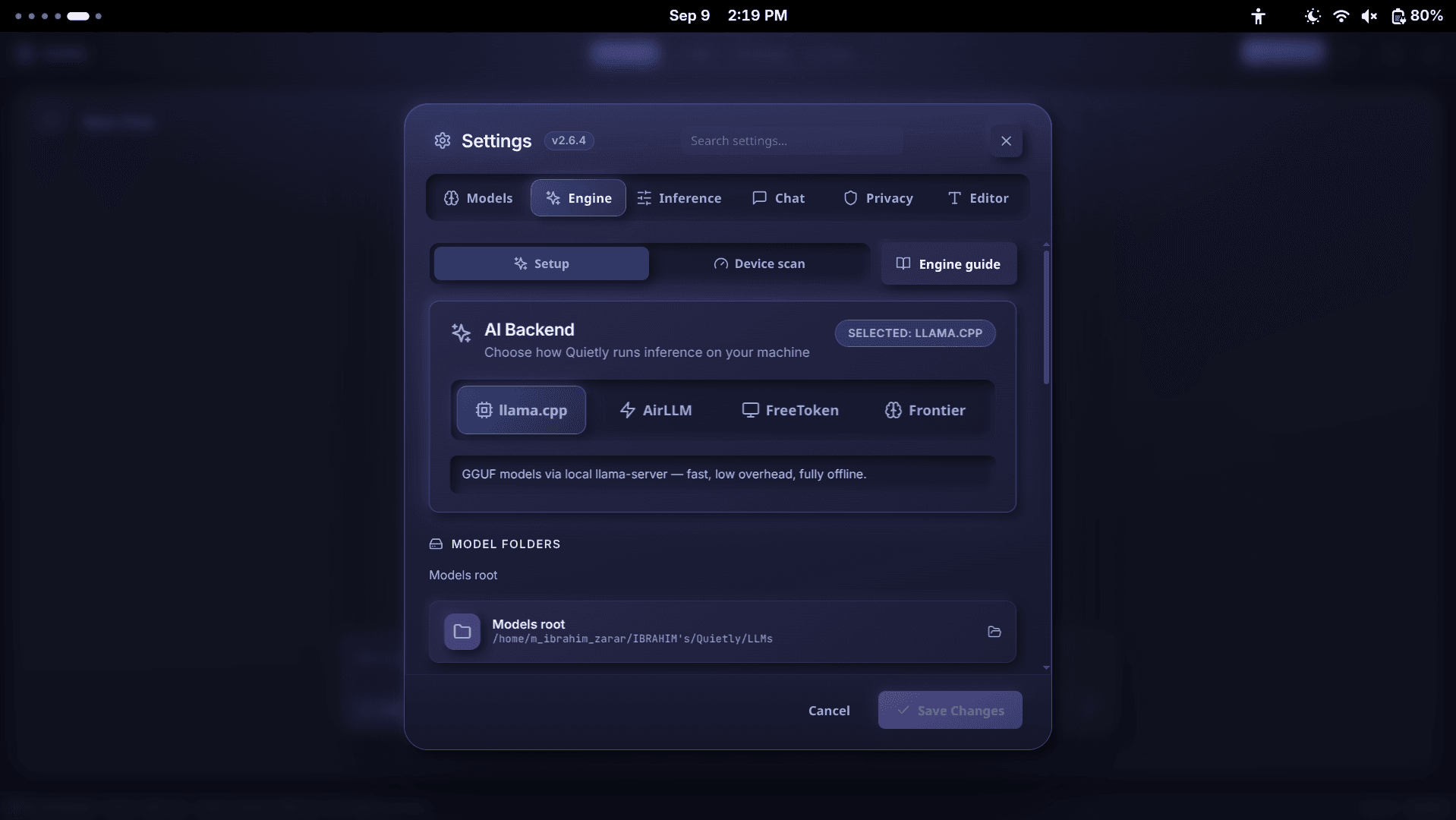
On Linux x86_64 with an NVIDIA GPU and CUDA 13, Quietly also offers the FreeToken engine in Settings → Engine as an additional backend.
Troubleshooting common Linux issues
Fixes for the issues Linux users hit most often.
| Problem | Fix |
|---|---|
| Blank or black window | Start with QUIETLY_SAFE_GPU=1 to use safer graphics settings |
| Blurry or odd window behaviour on Wayland | Quietly uses XWayland by default for stability. To try native Wayland, start with QUIETLY_USE_NATIVE_WAYLAND=1 |
| AppImage won’t start | Install FUSE 2 (see above) and make sure the file is executable |
| Model runs slowly | Check vulkaninfo, run the Device scan, and choose a model marked Best match or Good fit |
Environment variables for graphics troubleshooting.
QUIETLY_SAFE_GPU=1 ./Quietly-*.AppImage
QUIETLY_USE_NATIVE_WAYLAND=1 ./Quietly-*.AppImage
FAQ
Does Quietly run on Linux?
Yes. Quietly is available as an AppImage (x86_64 and ARM64), a .deb package (amd64 and ARM64), and an .rpm package (x86_64). The AppImage works on almost any distribution.
Should I use the AppImage or the .deb?
The AppImage is one file that runs almost anywhere and is the recommended option. The .deb is nice on Ubuntu and Debian if you prefer a system package with automatic dependency handling.
Is Quietly on the AUR?
Not officially yet. On Arch and its derivatives, use the AppImage—install fuse2, make it executable, and run it.
Does local AI use my NVIDIA GPU on Linux?
Yes. Quietly’s llama.cpp engine uses Vulkan on Linux with NVIDIA GPUs, so install the proprietary NVIDIA driver. On x86_64 with CUDA 13, the FreeToken engine is also available.
Why is the Quietly window blank on Linux?
Some GPU and driver combinations have compositing issues. Start Quietly with QUIETLY_SAFE_GPU=1 to use safer graphics settings.
Related guides
Comparison
The Offline Cursor & GitHub Copilot Alternative: A Private AI IDE (2026)
Want Cursor- or Copilot-style AI coding without sending your code to the cloud? An honest look at what a private, offline AI IDE can do in 2026, where it still trails, and how Quietly fills the gap.
Comparison
LM Studio vs Ollama vs Quietly (2026): Which Local AI Tool Should You Use?
A plain-English comparison of LM Studio, Ollama, and Quietly in 2026: what each one is really for, who should pick which, and why many people end up using more than one.
Awareness
How Much RAM Do I Need to Run an LLM Locally? (Simple 2026 Guide)
A simple, no-jargon guide to how much RAM you need to run a local LLM: the one formula to remember, a table for 8 GB to 64 GB machines, why context length eats memory, and how to check your own PC in one click.