llama.cpp GUI for Beginners: Run Local AI Without the Terminal
llama.cpp is the engine behind most local AI—but it’s a command-line tool. Here’s what it does, what all those flags mean, and how to use it through a simple GUI without typing a single command.
Awareness · 9 min
llama.cpp GUI for Beginners
llama.cpp is the engine behind most local AI—but it’s a command-line tool. Here’s what it does, what all those flags mean, and how to use it through a simple GUI without typing a single command.
Definition
llama.cpp is a free, open-source engine that runs AI language models (in GGUF format) on ordinary computers. A llama.cpp GUI is a desktop app that downloads, configures, and runs llama.cpp for you, so you can chat with local models without using the command line.
If you’ve explored local AI, you’ve seen llama.cpp everywhere. It’s fast, runs on almost any hardware, and powers a big share of local AI apps.
It’s also a terminal program with dozens of flags. For many people, that’s where the journey ends.
This guide explains what llama.cpp actually does in plain English, decodes the settings you’d normally type, and shows how to get the same result with a few clicks.
What llama.cpp is (without the jargon)
- It’s the engine: it loads an AI model file and generates text, on your CPU, GPU, or both.
- It reads GGUF files: a single-file model format you can download from Hugging Face.
- It runs on almost everything: Windows, macOS, and Linux, with support for NVIDIA, AMD, Intel, and Apple GPUs.
- llama-server is its built-in server: it loads a model once and lets apps talk to it.
Think of llama.cpp as a car engine. Incredibly capable, but most people would rather drive a car than bolt an engine to a frame. A GUI is the car.
The terminal way (so you know what you’re skipping)
Running llama.cpp by hand means picking the right build for your GPU, downloading a model, and starting the server with a command like this:
A typical llama-server command. Each flag is a decision you have to get right.
llama-server -m ./models/qwen2.5-7b-instruct-q4_k_m.gguf -c 8192 -ngl 99 -t 7 --port 8080What those flags mean—and what a good GUI decides for you.
| Flag | Meaning | What goes wrong if you guess |
|---|---|---|
| -m | Path to the model file | Wrong file, or a model too big for your RAM |
| -c | Context size (how much text the model sees) | Too big: out of memory. Too small: it forgets |
| -ngl | How many layers go on the GPU | Too many: crash. Zero: needlessly slow |
| -t | CPU threads | Too many: your whole computer stutters |
| --port | Where apps connect | Conflicts with other programs |
note
Plus: which build?
llama.cpp comes in different builds for CUDA (NVIDIA), Vulkan, ROCm (AMD), Metal (Mac), and CPU. Picking the wrong one is the most common beginner mistake.
The GUI way: Quietly in three screens
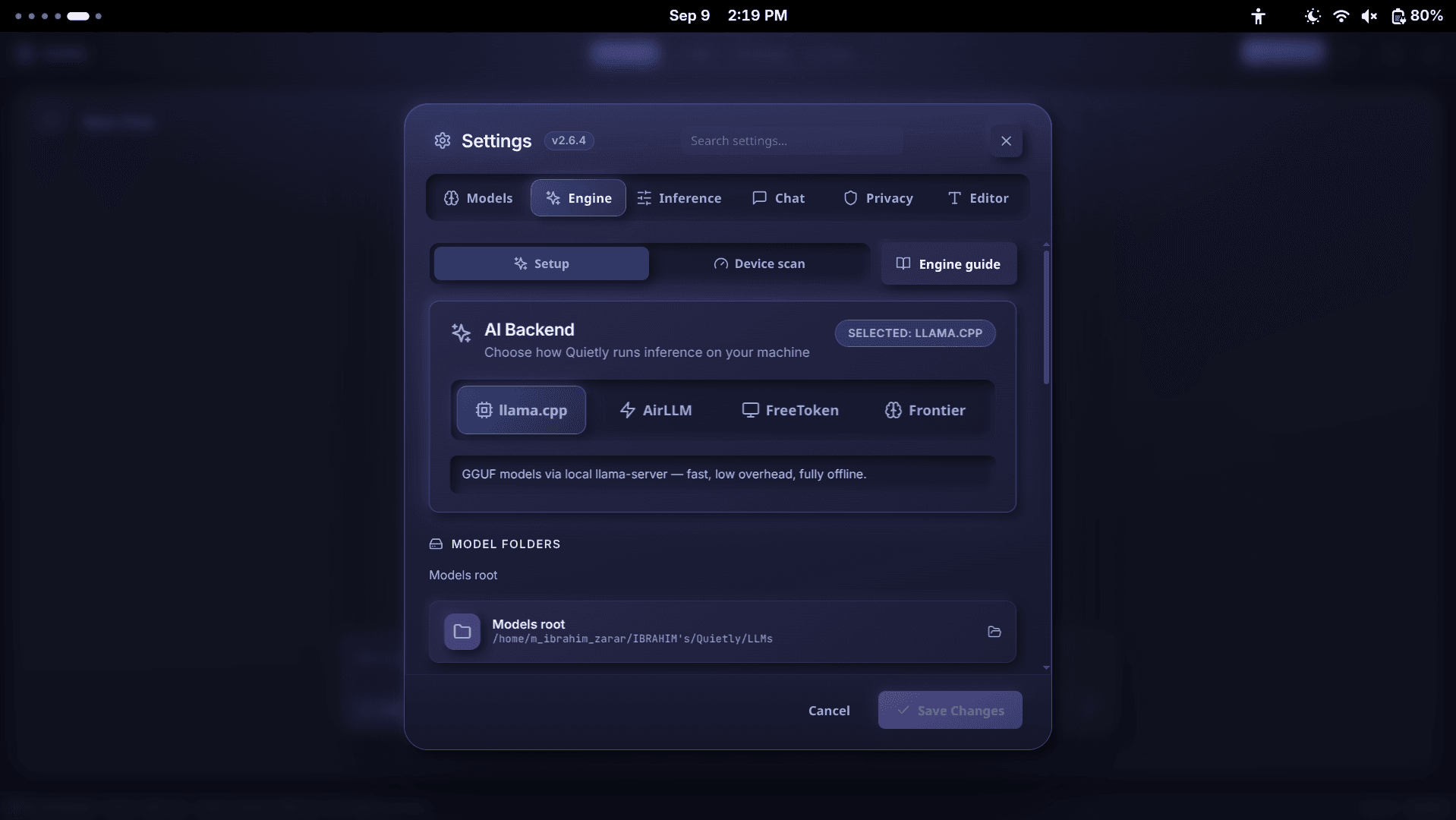
Quietly uses llama.cpp as its main engine and handles every decision above. The first time you open it, there are three simple screens:
- Welcome: “A calm, AI-powered pair programmer running entirely on your machine.” Click Get Started.
- Engine: choose “Auto-download” (recommended) and Quietly fetches the right llama-server build for your computer—CUDA or Vulkan on Windows, Metal on Mac, Vulkan or ROCm on Linux, with a CPU fallback. Already have llama.cpp? Choose “I already have it.”
- Model: “Choose your first model.” A tiny starter model is pre-selected so you can test everything in a minute; download a bigger one whenever you like.
From flags to clicks
How each terminal decision maps to Quietly.
| Terminal | In Quietly |
|---|---|
| -m model.gguf | Pick a model in the Models catalog, or Import Model for your own GGUF |
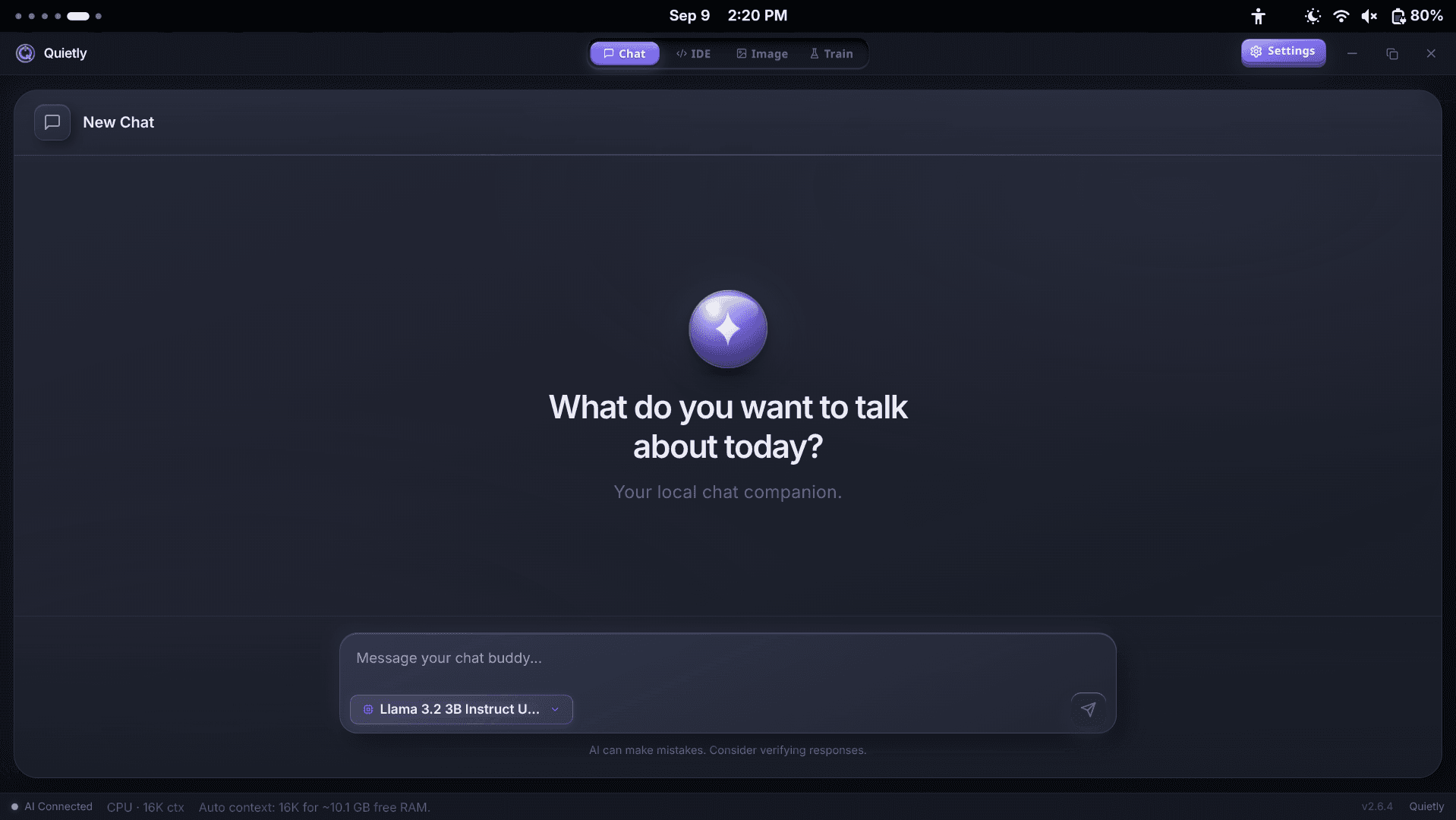
| -c 8192 | Context window: Auto picks a safe size from your free RAM (shown in the status bar) |
| -ngl 99 | GPU layers: “All layers (GPU)” or “CPU only” |
| -t 7 | CPU threads — the Device scan suggests cores minus one |
| --port 8080 | Handled internally; nothing to configure |
| Choosing a build | Auto-download detects your GPU |
| Picking a model that fits | Device scan labels models as Best match, Good fit, May be slow, or Not recommended |
The inference settings you might want to adjust later are simple controls in Settings → Inference: Max Output Tokens, Temperature, Top-P, and Repeat Penalty. The defaults are tuned for balanced answers, so most people never touch them.
What you get beyond a basic launcher
- A real chat app: saved history, search, rename, branches, regenerate, and Markdown export.
- Vision: attach an image when you’re using a vision model.
- A full AI code editor with an agent, if you code.
- Offline image generation and fine-tuning in the same app.
- Other engines when you outgrow llama.cpp—such as AirLLM for very large models.
tip
Bring your own models
Downloaded GGUF files elsewhere? Use Models → Import Model to add them. Your files stay where you choose, and nothing is uploaded.
FAQ
Is there a GUI for llama.cpp?
Yes. Several desktop apps use llama.cpp under the hood. Quietly downloads the right llama.cpp build for your hardware, picks models that fit your machine, and sets context and GPU options automatically—no terminal required.
What is llama-server?
llama-server is llama.cpp’s built-in server. It loads a model once and lets apps send it prompts. Quietly starts and manages llama-server for you in the background.
Do I need to know the command line to run local AI?
No. With a GUI like Quietly, setup is three screens: Welcome, Engine (auto-download), and Model. After that, you just chat.
Which llama.cpp build do I need?
It depends on your GPU: CUDA for NVIDIA on Windows, Vulkan for other GPUs, Metal on Mac, ROCm for AMD on Linux, or CPU. Quietly’s Auto-download detects your hardware and picks the right one.
Can I use my own GGUF models?
Yes. Any compatible GGUF file can be added through Models → Import Model.
Related guides
Awareness
How Much RAM Do I Need to Run an LLM Locally? (Simple 2026 Guide)
A simple, no-jargon guide to how much RAM you need to run a local LLM: the one formula to remember, a table for 8 GB to 64 GB machines, why context length eats memory, and how to check your own PC in one click.
Awareness
Best Local LLM for Laptops Without a GPU (8 GB / 16 GB RAM) — 2026 Picks
No graphics card? You can still run useful AI offline. The best local LLMs for CPU-only laptops with 8 GB or 16 GB of RAM, what speed to expect, and simple tweaks that make them faster.
Awareness
How to Run a 70B Model on a Small GPU with AirLLM (Honest 2026 Guide)
AirLLM lets 70B-class models like Llama 3.3 70B run on GPUs and PCs that could never hold them in memory. How layer streaming works, what speed and disk space to really expect, and how to set it up without the terminal.